
Reading Your Plan
The Plan tab is home base. Once you know that it shows two parallel tracks — money going into envelopes and money going out of them — every number on the screen falls into place.
The two tracks
The allocation track is about filling envelopes:
| Number | Meaning |
|---|---|
| Planned Allocation | What your plan says envelopes should receive this month |
| Allocated This Month | What they’ve actually received so far |
| Allocation Still Needed | The gap: each envelope’s plan less what it’s been allocated, added up |
The spending track is about drawing them down:
| Number | Meaning |
|---|---|
| Planned Spend | What you expect to spend this month |
| Spent | What’s gone out so far |
| Available Spend | Planned Spend minus Spent — the month’s remaining runway |
These can differ on purpose. A Vacation envelope might have a big planned allocation (you’re saving hard) and zero planned spend (the trip is next summer). Rent has both equal. Groceries usually match too.
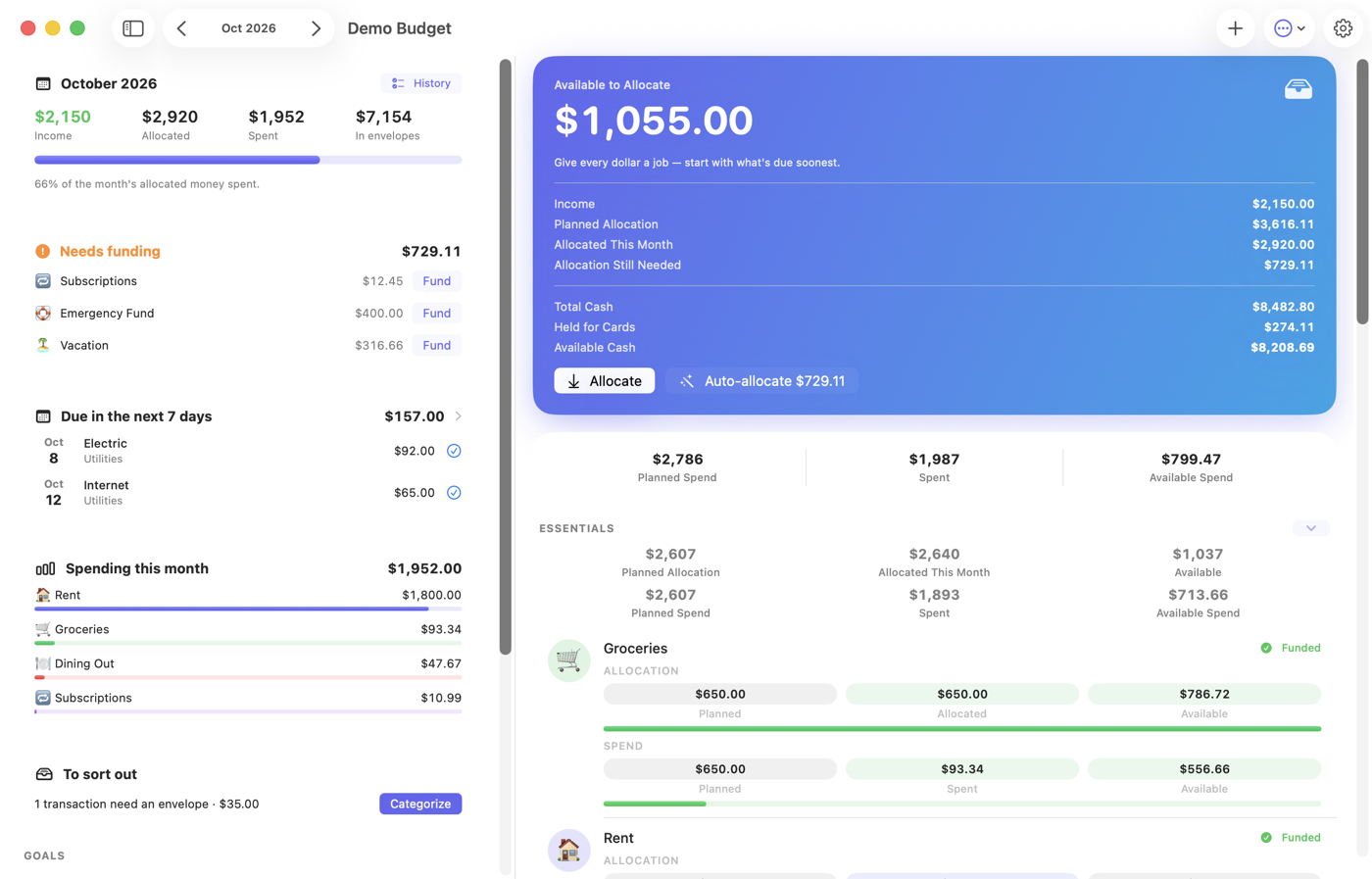
The hero card
The card at the top always answers “what should I do right now?” Its headline is one of four things:
- Available to Allocate with money waiting → allocate it. Buttons right on the card: Allocate, a one-tap Auto-allocate for the amount your plan still needs, and Cover spending when some spending isn’t covered yet.
- Allocation Still Needed for the month, when nothing is left to allocate but the plan isn’t filled — fund what’s due soonest when money lands.
- On track — every dollar allocated, every contribution set.
- Overspent — you’ve allocated more than you have, or spending isn’t covered. See Back on Track.
Below the headline, the card lists:
- Income — what the month brought in (plus Starting Balances in the month your plan begins), then the allocation track: Planned Allocation, Allocated This Month and Allocation Still Needed.
- Total Cash / Held for Cards / Available Cash — your real cash position: everything you have, minus what’s set aside for credit card bills, leaving what’s genuinely free. Uncovered Card Spending appears in red when card purchases haven’t been covered by their envelopes yet.
Right under the hero, a strip shows the spending track for the whole month: Planned Spend, Spent and Available Spend.
Envelope rows and group headers
Each group header (Essentials, Lifestyle, Savings…) sums its envelopes on both tracks; turn the totals off with Settings → Display → Group totals. Each envelope row tells its month in three labeled pills per track:
- Allocation — Planned, Allocated, and Available: the envelope’s whole balance, the number that answers “can I afford it?”
- Spend — Planned, Spent, and Available: what’s left of the month’s planned spend.
A zero pill reads gray and a shortfall red, with a progress bar under each track. The row’s corner says how much is left to allocate, or Funded once the month’s plan is filled. A savings goal with sub-goals lists each one — and its general bucket — underneath, with their planned save and planned spend. Red lines at the bottom flag trouble: a negative balance carried in from last month, or card spending not covered. Tap any envelope for detail, history, and its own Allocate / Move / Spend / Fund need actions. (Prefer less? Settings → Display → Compact envelope rows trades the pills for a short line of figures.)
On iPhone, the Plan home also shows these cards, in an order you can rearrange (or hide) under Settings → Display → Home sections:
- Back on track — only when something is overspent; see Back on Track
- Needs funding — envelopes short of their plan, each with a one-tap Fund button
- Upcoming bills — what’s due in the next 7 days, with a check to record each payment
- Goals — progress on each savings goal and sub-goal
- Envelopes — the list itself, which always shows
On iPad and Mac the Plan tab uses the width: Available to Allocate, the planned spend and your envelopes stay in view on the right (pick an envelope and its page opens in their place, with a way back), while the left column holds Back on track, the month at a glance, Needs funding, Due in the next 7 days, Spending this month (the biggest outflows), To sort out (transactions still waiting for an envelope) and Goals.
Other months
The month picker in the top corner moves through your history — and forward. It’s one month for the whole app: Plan, Spend, Reports and Activity all follow it, and the month name turns to the accent color while you’re away. Tap the name to come back to this month.
Browsing next month lets you get ahead: allocate January money in December and the plan simply waits for it. Bills plan from that month’s own balance, so what you allocate ahead counts toward them. Browsing back shows each month as it ended, and Budget history & reconcile in the ⋯ menu shows how the numbers evolved.
Every month keeps to its own money. A past month is judged as of its own end: covering its overspending, the Back on Track plan and Cover this month’s spending only ever use what that month had, so putting August right never spends September’s paycheck. If a month’s allocations get tangled, Redo this month’s allocations in the ⋯ menu takes back everything allocated in it, then covers what it actually spent — bank spending first, then card purchases oldest first — until that month’s money runs out. It doesn’t fund contributions or goals; use Auto-allocate for those.
One subtlety worth knowing: envelope balances carry forward, including overspending. An envelope that ends March at −$40 starts April at −$40 — the hole doesn’t quietly vanish at midnight on the 31st. That’s honest, and it’s what makes Back on Track meaningful.
Prefer a simpler view?
If the two tracks are more than you want day-to-day, the Spend tab — titled Available to Spend — shows just this month’s spending plan per envelope: planned, spent, available. Many households live there and visit Plan only on allocation day. See Can I Afford It?.