
Can I Afford It?
The Spend tab — titled Available to Spend, to pair with Plan’s Available to Allocate — exists for one moment: you’re about to buy something and you want the answer now. No mental math, no scrolling through a ledger — just the question the app is named after.
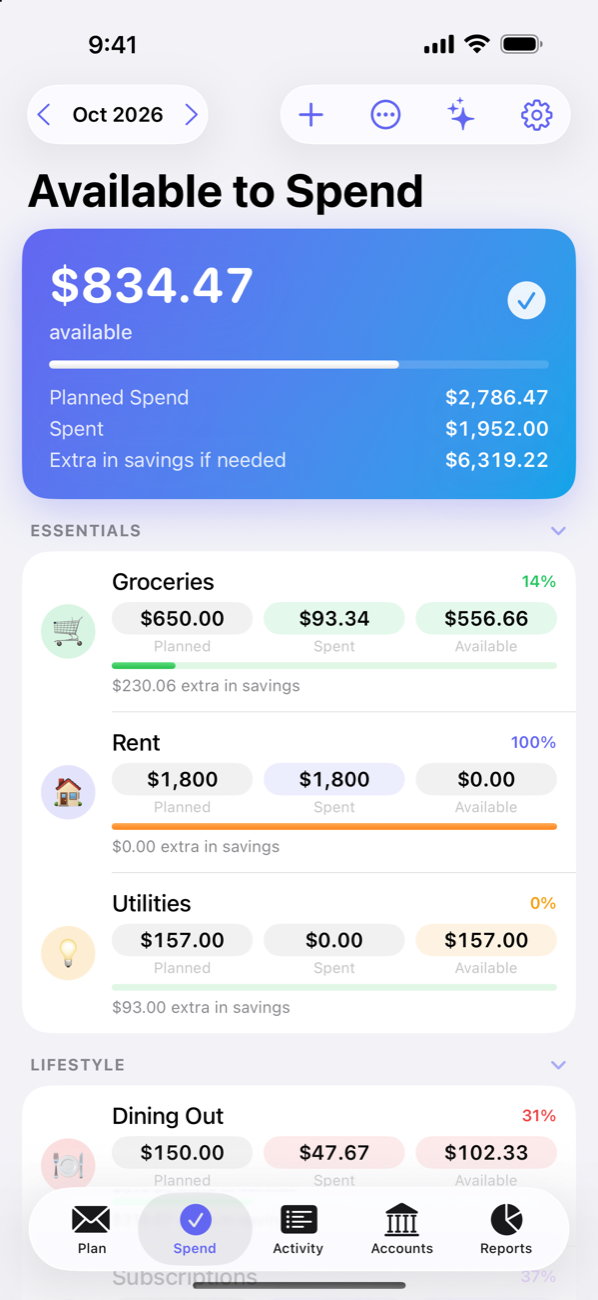
How to read it
The card at the top shows this month’s total: what’s available — your envelopes’ Planned Spend minus what you’ve Spent — and, a quiet comfort, the Extra in savings if needed: money your envelopes hold beyond what this month’s plan still needs (savings goals, plus whatever carried over from lighter months). It’s shown separately so it never silently pads the everyday numbers. If spending passes the plan, the card says how far you’re over planned spend.
Each envelope row tells its month in three labeled pills, with the percent of its planned spend that’s gone beside the name:
- Planned — the month’s planned spend for this envelope.
- Spent — what’s gone out this month, net of refunds.
- Available — what’s left of the plan to spend.
Under the progress bar, a line shows the envelope’s extra in savings — money it holds beyond the plan, still yours to spend. The colors keep pace: green with room to spare, yellow then orange as the plan gets close, orange once you’ve passed the plan but the envelope still has money, and red only when spending has outrun the envelope itself.
If the Available pill has what the thing costs, you can afford it. Buy it and enjoy it — that money has been waiting for exactly this.
What “available” includes
Everything here is real allocated money, not a projection. The planned spend is a pace, not a wall: the real limit is what the envelope holds — what carried over from previous months plus this month’s allocations, minus spending. That’s why a row can be past its plan and still not red: the extra is there, and spending it is your call. Nothing is padded by money in other envelopes or by unallocated cash — Afford never blurs the lines, because the lines are what make the instant yes trustworthy.
Savings envelopes plan no spending unless you give them a planned spend, so they don’t swell the month’s spending numbers. What they hold shows up as extra in savings, so you know the full picture without accidentally spending the vacation fund on tacos.
Tap an envelope to see its month: what’s available to spend, what’s spent, the extra in savings, and this month’s transactions. Its Budget this month card lets you set your own planned spend — for every month, or just this one.
When the answer is “not from this envelope”
A red row doesn’t mean no — it means not from here. Your options, in the order worth trying:
- Move money from an envelope with slack — on the Plan tab, open the envelope and tap Move (Allocating). Takeout tonight funded by the grocery slack is a decision, not a failure.
- Allocate more if you have Available to Allocate sitting unused.
- Wait — the envelope refills when you next allocate.
What Afford will never do is scold you. If you overspend anyway, the envelope simply goes negative and Back on Track helps you cover it — Cover this month’s spending is right in the Spend tab’s ⋯ menu.
Other handy bits
- The month picker is shared with Plan, Reports and Activity — step back to see how last month went.
- The + button adds a transaction from right here.
- On iPad and Mac, your envelopes sit on the left and the one you pick opens on the right.
Making Spend your home
If this view is how you think, set it as your landing screen: Settings → Display → Default tab → Spend. The default is picked per budget, and on a shared plan each person picks their own — the spreadsheet person can live in Plan while everyone else lives here.