
Activity & Transactions
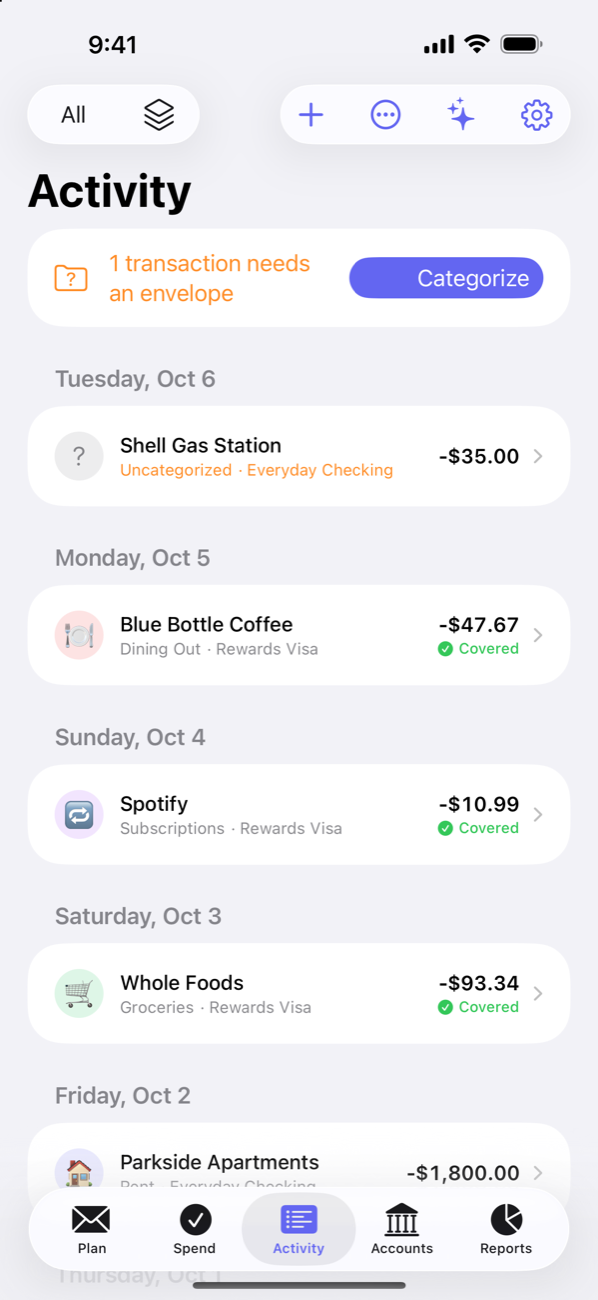
The Activity tab is every transaction across your accounts, newest first — synced from the bank or entered by hand — with the tools to keep them filed with almost no effort. Browsing follows the app-wide month: pick an earlier month on Plan or Spend and Activity shows that month’s transactions. Search and filters always run over the whole ledger.
Categorizing
Every spending transaction wants an envelope. Rows that don’t have one yet show as Uncategorized, are counted in the banner at the top, and appear on the Plan home under “To sort out.” Tap a row to pick its envelope — or tap Categorize in the banner (also Categorize with suggestions in the ⋯ menu) to work through every uncategorized merchant in one sitting: each gets a suggested envelope from your rules and Afford’s built-in hints, and one choice files every transaction from that merchant. With Afford Pro, Penny can place the ones left over — or take the whole queue: “categorize my uncategorized transactions.”
Afford learns your payees
Categorize a payee once and Afford remembers: the next FRED MEYER files itself into Groceries. In the transaction editor that’s the Remember this payee switch, on by default. The learned rule keys on the merchant name and ignores trailing store numbers, so it carries across store numbers and cities.
It goes a level deeper, too. Afford keeps the bank’s raw transaction text alongside the cleaned-up payee, and rules match against both. Categorize “FRED MEYER FUEL” as Gas and Afford learns a rule for the bank text instead of overwriting your general one — plain “FRED MEYER” stays Groceries. When several rules match, the longest (most specific) text wins. The raw text appears on every synced transaction’s detail page as Bank description, can be selected and copied, and is searchable.
To see or change what Afford has learned, open Settings → Payee rules (also reachable from the Payees page in Activity’s filter menu). There you can add a rule by hand, change its text or envelope, delete it, and — when creating or editing a rule — file the uncategorized transactions it already matches in one go. The same rules apply whether a transaction came from the bank or was typed in.
The review queue
Bank feeds are messy in well-known ways, and Afford reconciles the routine cases silently: a tip that settles for more than the pending hold, a pending row replaced by its posted twin, transfers between your own accounts, card payments. What’s left — the genuinely ambiguous — is flagged Needs review, each row with the app’s best guess and one-tap answers:
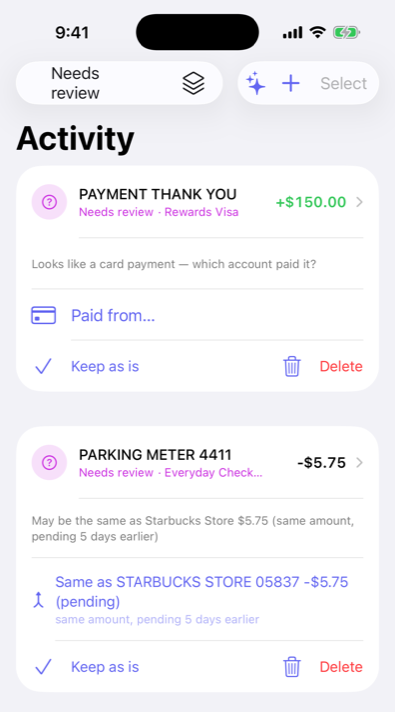
- “Looks like a card payment — which account paid it?” → Paid from…
- “May be the same as [a pending row], same amount, five days earlier” → Same as… merges them
- A stale pending hold that never posted → Keep as is or Delete
Filter Activity by Needs review to clear the queue, or Matched to audit what was merged and linked automatically.
Entering transactions by hand
Cash and untracked spending still count. Add a transaction with the + button on Activity, Plan or Spend, or straight from an envelope’s Spend action. Start typing a payee — or tap the payee button beside the field — and Afford offers the payees it already knows, including bills that haven’t been paid yet; picking one fills in the envelope, account and amount it was last used with, and a payee rule fills in the envelope on its own.
Manual and synced accounts coexist happily — and if the bank later reports a row you entered by hand, the matcher merges them instead of double-counting.
Tracking without a bank connection
Bank sync is optional (and an Afford Pro feature). A budget kept entirely by hand works the same way, with a few things to take the typing out of it:
- Accounts by hand. On the Accounts tab, choose Add account manually from the + menu for each checking account, card or cash wallet you want to track.
- The payee directory. Every payee you’ve used is remembered with its envelope, account and last amount, so a repeat purchase is a couple of taps. The Payees page in Activity’s filter menu lists them, most used first; tap one to search the ledger for it.
- Bills that record themselves. Tap the check button on a bill’s row (in its envelope, or in Upcoming bills on Plan) to Record payment: pick the account and date, and the payment lands in the bill’s envelope and the due date rolls forward. Turn on Record this bill on its own when it’s due and Afford writes that payment for you each time the bill falls due — catching up any it missed while the app was closed, and skipping one the ledger already shows. Skip this one without recording moves the due date on when a bill was waived or paid some other way. Bills only record themselves on the budget owner’s devices, so a shared budget never gets the same payment twice.
Whichever way a payment arrives — typed in, recorded from the bill, or synced — a bill counts as paid when a matching transaction (its name or amount, near the due date) lands in its envelope, and its due date moves on by itself. See Envelopes & Goals for setting up bills.
If you add bank sync later, link each bank account to the one you’ve been keeping by hand and the history merges — see Bank Sync.
Search and filters
The filter menu narrows to Uncategorized, Needs review, Matched, Pending, Transfers or Income (plus the Payees page), and the account button narrows to one account. Search covers payees, memos, envelopes, account names, amounts — and the raw bank text, so you can find “that weird ACME POS 4417” charge exactly as the bank spelled it.
Matching and transfers by hand
The automatic matcher covers most cases, but you can also do it yourself: pick two rows (on iPhone, Select in the ⋯ menu; on iPad and Mac, select them in the table) and Match them — either as the Same purchase (tip added), merging a pending hold and its posted twin, or Link as a transfer between your accounts. Both live on the Matched page afterward, and both can be undone from there — un-matching splits a merged row back into the two the bank reported.
Open any transaction to edit its envelope, payee, date, amount or memo. Everything stays editable — the ledger is a record, not a verdict.