Penny, the Assistant
Penny is Afford’s assistant, and she’s unusual in one important way: by default, she runs entirely on your device. Your finances are the most personal data you have, and the default setup never sends a word of them anywhere.
Penny is part of Afford Pro. On the free plan you’ll see what she can do and the way to upgrade (Settings → Afford Pro) instead of the chat.
Opening Penny
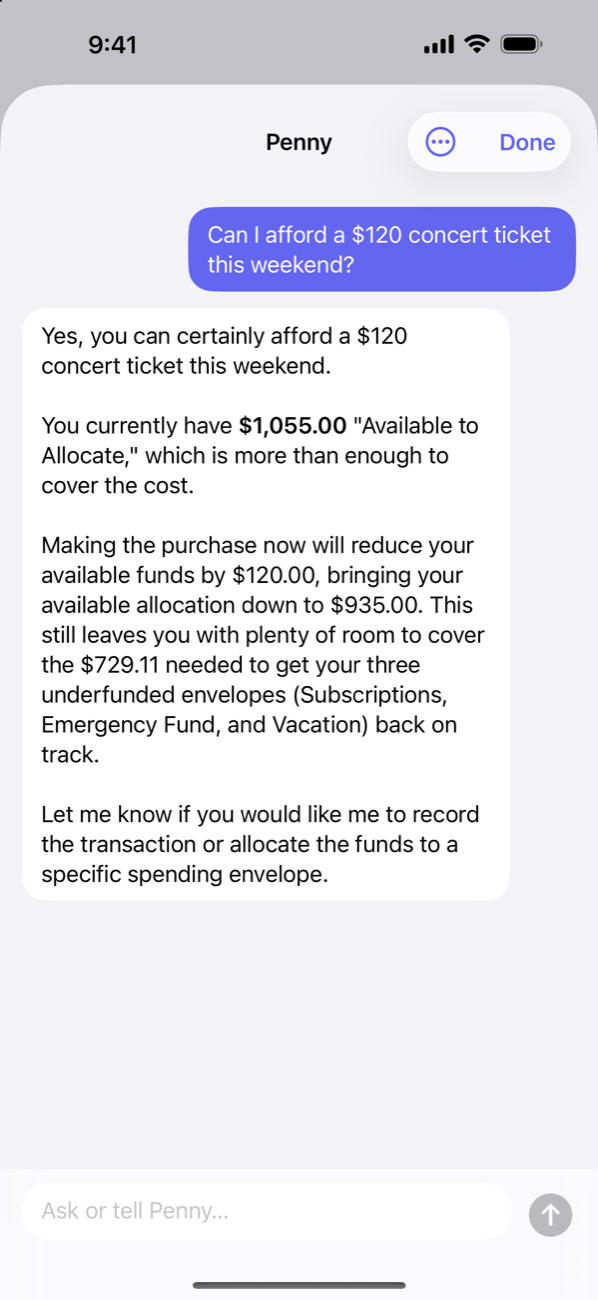
On iPhone, tap the ✨ button at the end of any section’s toolbar — she opens as a sheet over whatever you were looking at, so you never lose your place. On iPad and Mac she has a section of her own (and on the Mac, a menu-bar command).
What Penny can do
Penny can do anything the app can, because she uses the same actions you do:
- Answer questions — “How’s my budget looking this month?”, “Where did my money go in the last 90 days?”, “Which subscriptions am I paying for?”
- File transactions — “Categorize my uncategorized transactions” suggests an envelope for each merchant, files them, and learns the rules for next time.
- Draft a starter plan — “Build me a starter budget from my transactions” turns your history into groups, envelopes and monthly amounts, and opens it for your review before anything is created.
- Allocate for you — “Fund all my underfunded envelopes”, “move $50 from groceries to dining out”.
- Set things up — “Create a Vacation goal of $3,000 by next June”, “set up a Subscriptions envelope with Netflix and Spotify”.
- Adjust the app — “Switch the accent color to teal and hide empty envelopes”.
When you ask Penny to do something, she does it and then tells you exactly what changed, with amounts. Two exceptions: she asks before deleting an envelope or account, and a starter plan is always shown for review first unless you tell her to apply it straight away.
Choosing an engine
Settings → Penny (the row carries your assistant’s name) → Engine:
| Engine | What it is |
|---|---|
| Automatic (default) | Uses Apple Intelligence when your device has it, otherwise Gemma 4 |
| Apple Intelligence | Apple’s built-in on-device model — no download, instant, private |
| Gemma 4 (download) | An open model that runs locally via MLX — a one-time download for devices without Apple Intelligence, or if you prefer it |
| Online service (your API key) | A cloud model you bring your own key for, or a server you run yourself — see below |
The same screen shows which engine is In use and its status.
Apple Intelligence requires a device that supports it (recent iPhones, Apple Silicon iPads and Macs) running iOS, iPadOS or macOS 26 or later, with Apple Intelligence turned on in system settings. If it’s available, Automatic uses it — zero setup. On iOS 27 and later, the In use line also shows which variant of Apple’s on-device model your device runs and how much it can hold. Afford fits every conversation into that space automatically — trimming older turns and anything a question doesn’t need — so long chats keep working on the small on-device model.
Gemma 4 is downloaded once from within the app and then runs fully offline. There are two sizes — about 2 GB (fastest) or about 3.5 GB (smarter, best on devices with 8 GB of memory or more) — so Wi-Fi is a good idea. The model files come from Hugging Face; only the model is downloaded, nothing of yours is sent. You can delete it any time from Settings to free the space, and download it again later.
Private Cloud Compute
On iOS 27 and macOS 27, the Apple Intelligence engine shows a Private Cloud Compute switch. Private Cloud Compute is Apple’s server-side model: if Afford used it, your question and a budget snapshot would go to Apple’s Private Cloud Compute servers for that request and not be kept.
This version of Afford doesn’t use Private Cloud Compute. It needs a permission from Apple that Afford doesn’t have yet, so the switch explains that and the on-device model answers every question. If a future version turns it on, the switch is how you’ll control it, and we’ll update this page and the privacy policy first.
Online services (optional, your key)
If you want a bigger model than your device can run, you can point Penny at a cloud service — with your own API key, on your own terms. Settings → Penny → Online services supports ChatGPT, Claude, Gemini, OpenRouter and Hugging Face. Then pick Online service as the engine and choose the service.
Things to be clear-eyed about:
- While Penny runs on an online service, each message sends the conversation, a snapshot of your budget, and the results of anything she looks up to that service, under your key and subject to its privacy policy. Afford says so in Settings and at the top of the chat, and it only happens while Penny is actually answering — nothing goes to us.
- Keys are stored in your Keychain (and follow you to your other devices through iCloud Keychain); requests are billed to your account with that service.
- Each service’s screen shows token usage for the month, lets you set a monthly limit that stops Penny using that service once reached, and has Send a test question to check the key and model work (the test sends a simple arithmetic question — nothing from your budget).
The rest of the app never uses the network for AI — only Penny, only on the engine you chose.
Your own AI server
Prefer to keep everything on hardware you own? Choose Custom server under Online services and point Penny at any server that speaks the OpenAI chat API — Ollama, LM Studio, vLLM, llama.cpp, LiteLLM and similar.
- Enter the server’s base address, for example
http://192.168.1.20:11434/v1for Ollama orhttp://localhost:1234/v1for LM Studio./v1is added if you leave it off. An API key is optional — most local servers need none. - Plain
httpworks for a server on the same device or your local network; anything further away needshttps. - The first time it reaches for your network, Afford asks for Local Network permission — allow it, or your device can’t see the server.
- When you connect, Afford asks the server for its models first, so you’ll know right away if it can’t be reached or doesn’t serve the model you picked. If it can’t connect, it tells you the likely fix: “localhost” on an iPhone means the phone itself (use your computer’s Wi-Fi address instead), Ollama needs
OLLAMA_HOST=0.0.0.0to accept connections from other devices, and both devices need to be on the same network.
Your server receives exactly what an online service would — the conversation, a budget snapshot and tool results — and nothing goes anywhere else.
A note on the name
Penny is the default name — rename her in Settings → Penny → Assistant name if your household has other ideas. She answers either way.