
Allocating Money
Allocating is the heart of Afford: taking dollars that don’t have a job yet and pointing them at one. Everything else in the app is bookkeeping around this one act.
Available to Allocate
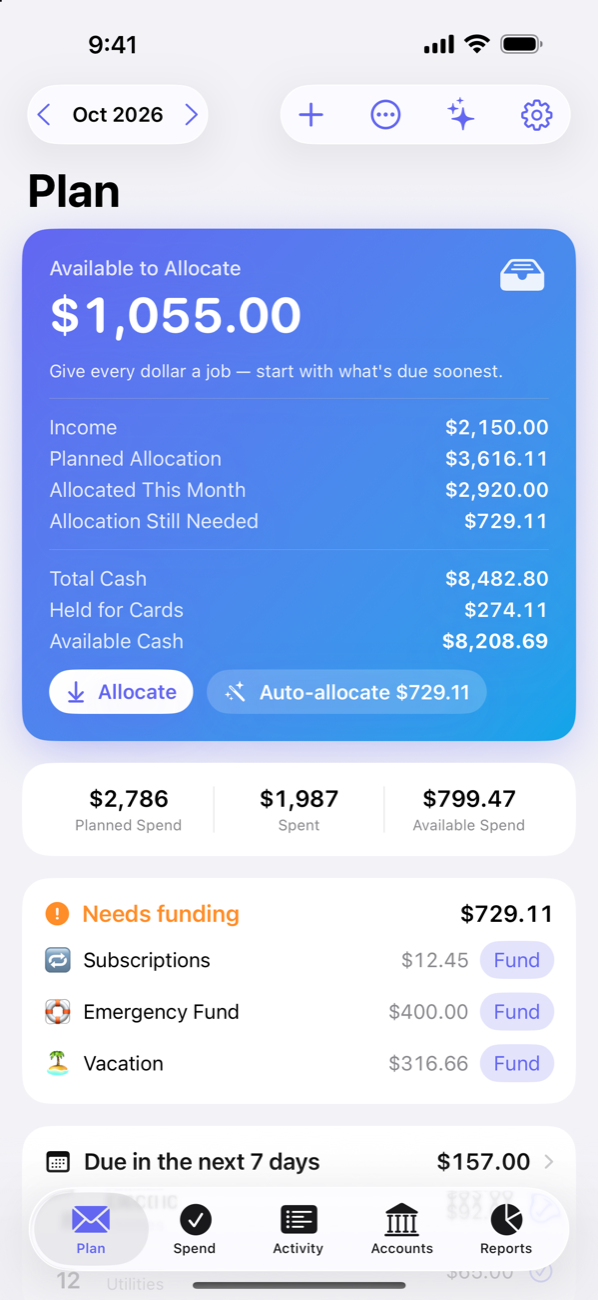
When income lands in an on-budget account — a paycheck syncs in, or you record a deposit — it shows up in the big card at the top of the Plan tab as Available to Allocate. This is money that exists but hasn’t been told what it’s for. The same card lists the month’s Income, so you can see what came in alongside what’s still waiting for a job.
The goal is simple: get this number to zero, on purpose. Not because unallocated money is bad, but because every dollar sitting there is a decision you haven’t made yet.
Allocating toward an envelope
Tap Allocate on the Available to Allocate card to hand money out across your envelopes in one sheet — each envelope shows what it still needs. Or allocate to a single envelope: long-press it (right-click on Mac) for Allocate money, or open it and tap Allocate. The money moves from Available to Allocate into that envelope, where it becomes Available — spendable, for that purpose, right now.
An envelope’s page also has Fund need, which tops it up to exactly what its plan still calls for this month. On a savings goal with sub-goals, the Allocate sheet asks where the money goes: Split by need (each sub-goal’s monthly share first, closest date first, the rest to the general bucket), the General bucket, or one sub-goal.
Auto-allocate
Each envelope can carry a planned allocation — what it should receive per month ($600 to Groceries, $250 to Dining Out). You set it as the envelope’s monthly contribution under Edit settings; bills envelopes work theirs out from their bill list. Once your envelopes have plans, the Plan tab shows the month’s totals:
- Planned Allocation — what the whole plan calls for this month
- Allocated This Month — what you’ve put in so far
- Allocation Still Needed — the gap
Auto-allocate closes that gap in one tap, funding every envelope that still needs money this month — bills first, then goals with a target date, then everything else. It never allocates more than you have. It’s the Auto-allocate button on the hero card, and Auto-allocate needs in the Plan tab’s ⋯ menu.
Taking money back and moving it
Plans meet reality, and Afford treats changing your mind as a feature:
- Take back — pull money out of an envelope, back to Available to Allocate. Overfunded groceries this month? Open the envelope’s Allocate sheet and use Take back this month, or enter a negative amount to take back just $50. To start the month’s allocations over, the ⋯ menu has Take back everything this month.
- Move — shift money straight from one envelope to another. Dining Out is empty but Groceries has slack? Tap Move on the envelope page and move $40 across. Every allocation, take-back and move shows on the envelope’s page under Allocations & moves, so the trail is always there. No guilt: the plan is yours, and updating it is the plan.
Getting ahead
When this month is fully funded, the hero card offers to get a month ahead. Step to next month with the month picker and allocate there: the hero reads Available to Allocate for that month, and the money sits in the envelopes waiting for it to start. Bills plan next month from next month’s balance, so money you allocate ahead counts toward what those bills ask for — it never makes the ask grow. Back on this month, the hero notes how much is already set aside for next month.
A few habits that help
- Allocate when money arrives, not at month end. The whole point is deciding before you’re standing in the store.
- Watch “Allocation Still Needed”, not your bank balance. The bank balance mixes rent money with fun money; the plan keeps them apart.
- Let savings ride. Money allocated to a savings envelope carries over month after month and quietly grows. See Envelopes & Goals.
- Ask Penny. “Fund all my underfunded envelopes” or “move $50 from groceries to dining out” — the assistant can do any of this for you. The assistant is part of Afford Pro.